
Nowadays, Windows is full of bloatware and telemetry, with a lot of unnecessary software, making our systems slow. With all of this RAM shortage is even worse. In this post I will guide you through the steps of installing one of many tools for optimizing Windows. One that is easy and useful. Atlas.
This method (and many of the similar ones) requires some IT knowledge, If you're not sure about what you're doing, I encourage you to not proceed.
Prerequisites
- The PC you want to install.
- An USB drive to flash it with Windows.
- Optional but recommended: A system backup previously done.
Preparing the system
As Atlas official documentation states, we will need a fresh Windows install. To do so, there are two easy methods:
- Restoring the system using Windows tool.
- Reinstalling Windows from a USB drive with an ISO.
Restoring using Windows tool
This one is quite simple, in your PC go to: Configuration > Windows Update > Advanced Options and click on Restore. A wizard tool will guide you.
Reinstalling from a USB drive.
There are several tools and methods, live Ventoy or the Windows Official imager. But I prefer using Rufus. You can follow this guide I've already made.
Installing Atlas
If you're following their official guide, is completely fine. Here I'll just put the same steps but showing the configuration I choose, explaining it a bit more, hoping you find it useful.
Download
First of all, we must download the AME tool and the Atlas playbook going here.
Click on Get started.
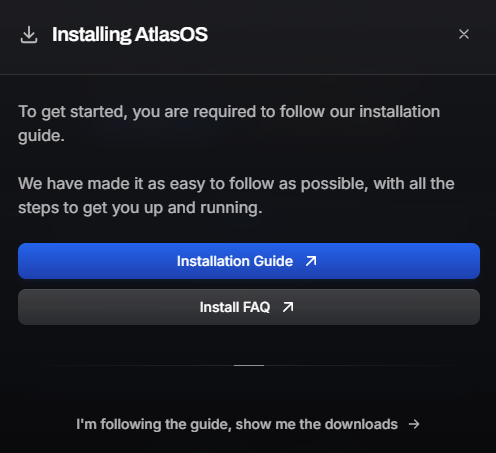
Then, at te bottom, click on I'm following the guide, show me the downloads. I recommend you to double check that you met the requisites and properly installed from scratch Windows 11.
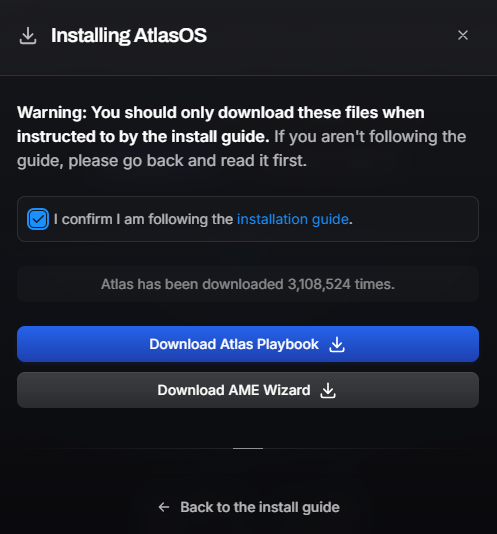
Now select I confirm I am following the installation guide as the image shows, and proceed to download both Atlas Playbook and AME Wizard.
They well be packed on ZIP files, decompress them.
Preparing Windows
Open the AME executable. It will show us the following window.
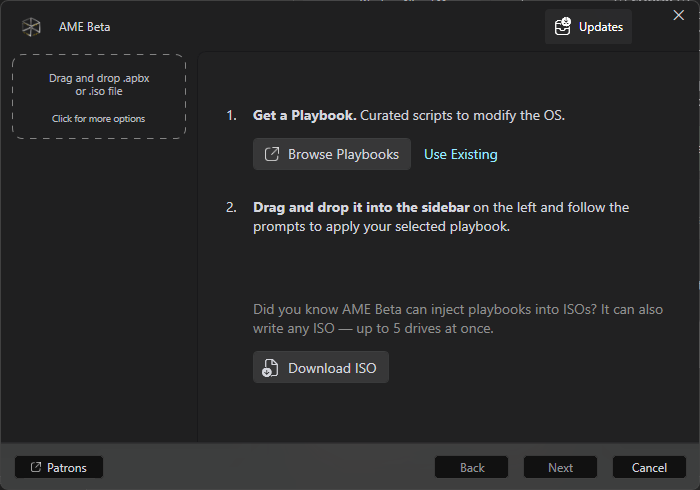
Click on Use Existing, and pick the Atlas Playbook.
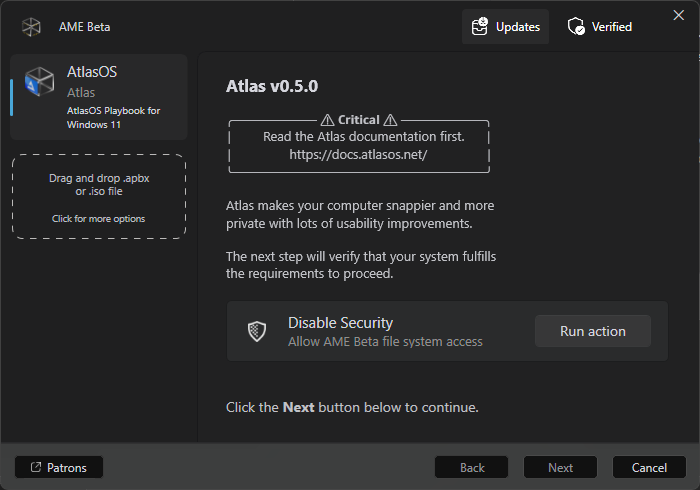
Here comes the delicate part, disabling Windows Security. This is common between this type of tools, since they alter Windows configurations and registers, and the firewall does not allow this. I understand that this could sound dangerous, so, if you want to be sure, this tool is open sourced, you can check its github.
As for me, I've been using it for almost two years with no issue, and it's been tested and recommended for a bunch of tech creators.
I'f you acknowledge this, then click on Run action.
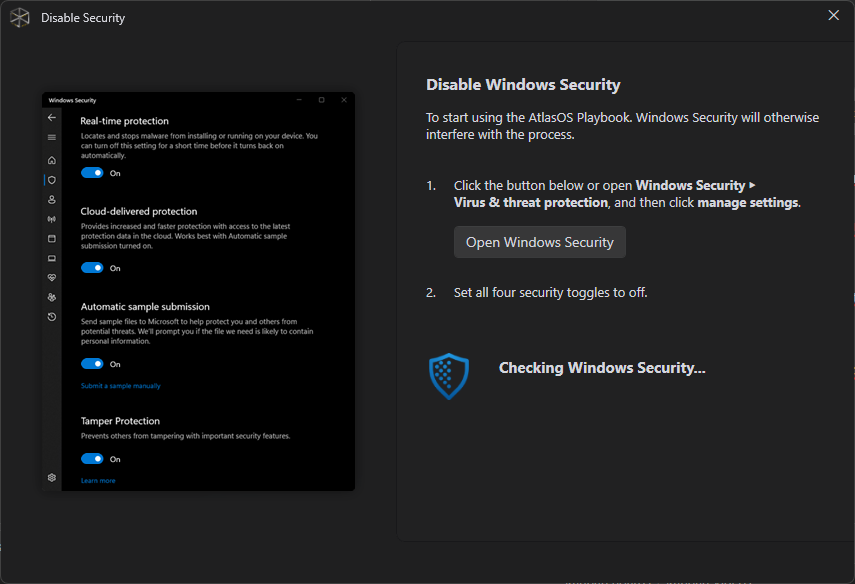
Click on Open Windows Security and proceed to un check all the windows security features.
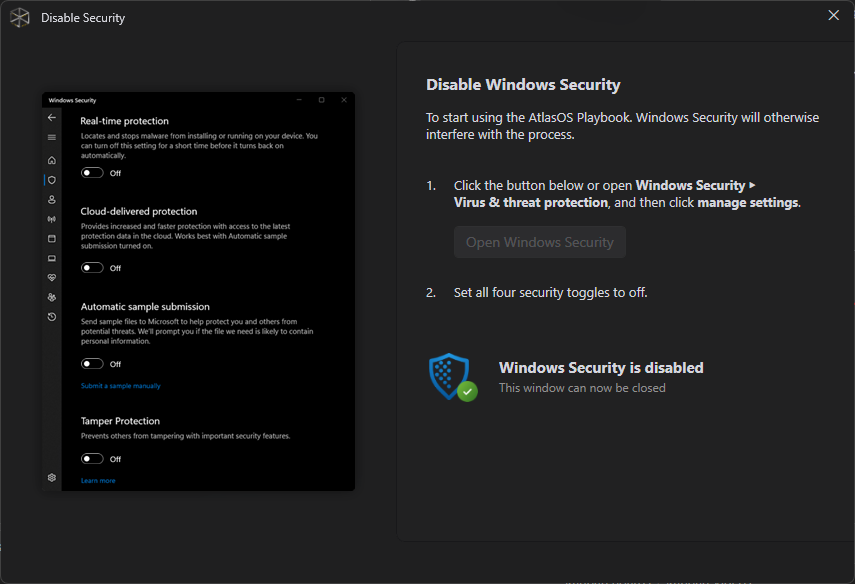
Now it shows that Windows Security is disabled. Close this window and click on Next. It will start analizing our installation.
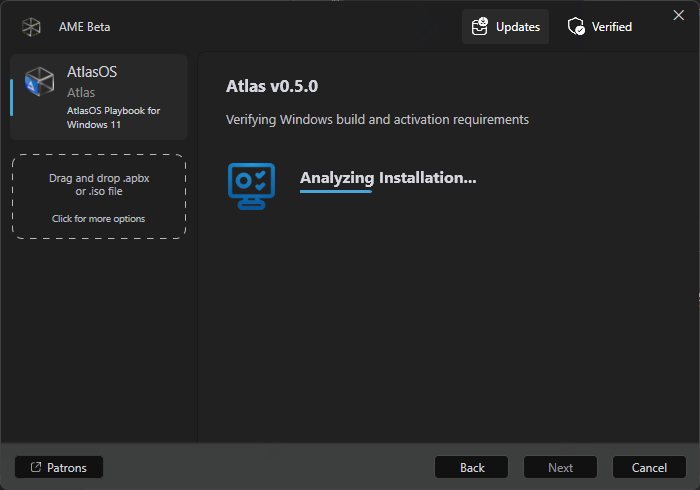
In this step could appear a warning showing us that the requirements are not met, and a button to apply changes and restart. Do it so and when the system reboots, AME will relaunch, proceed as we did, maybe you will have to re disable Windows Security, but once done, the requirements will be met.
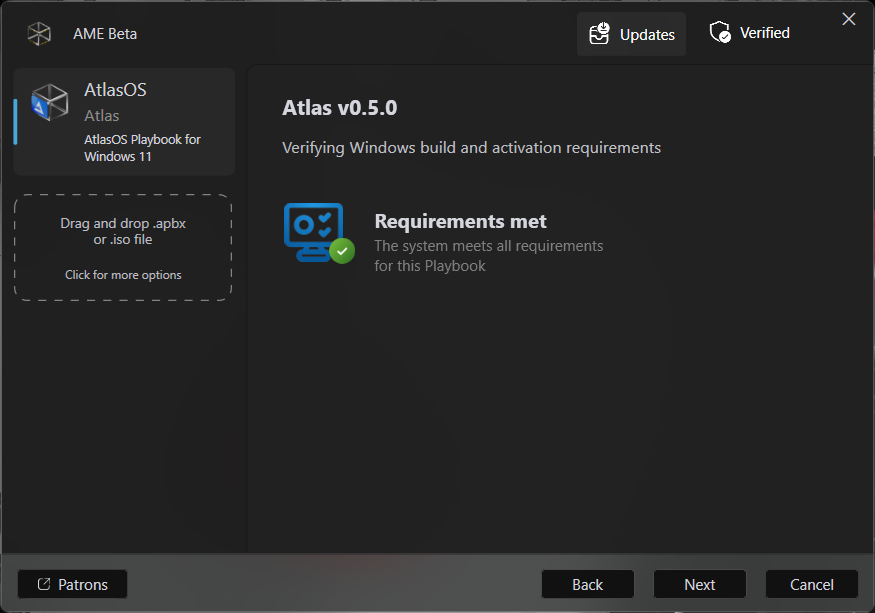
Click on Next. Some license agreements will show up.
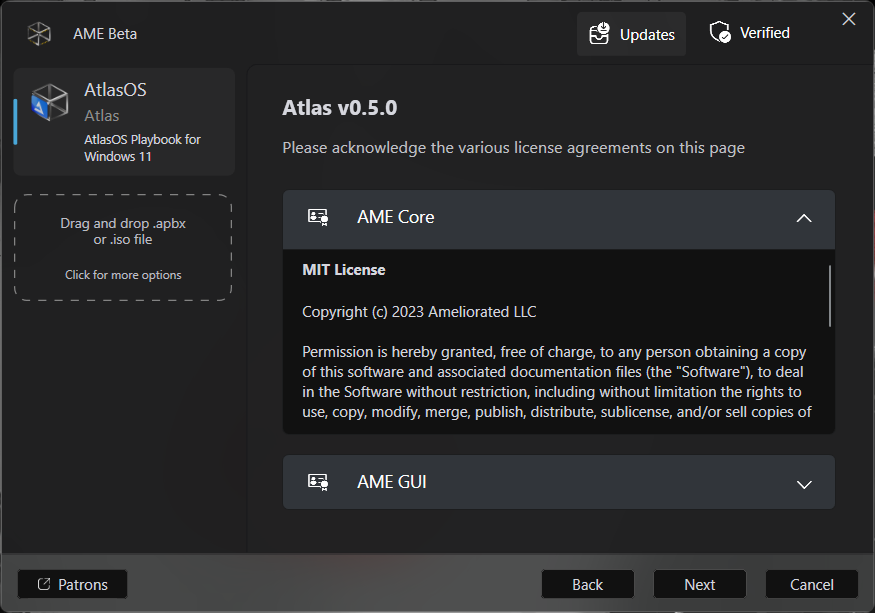
Click again on Next.
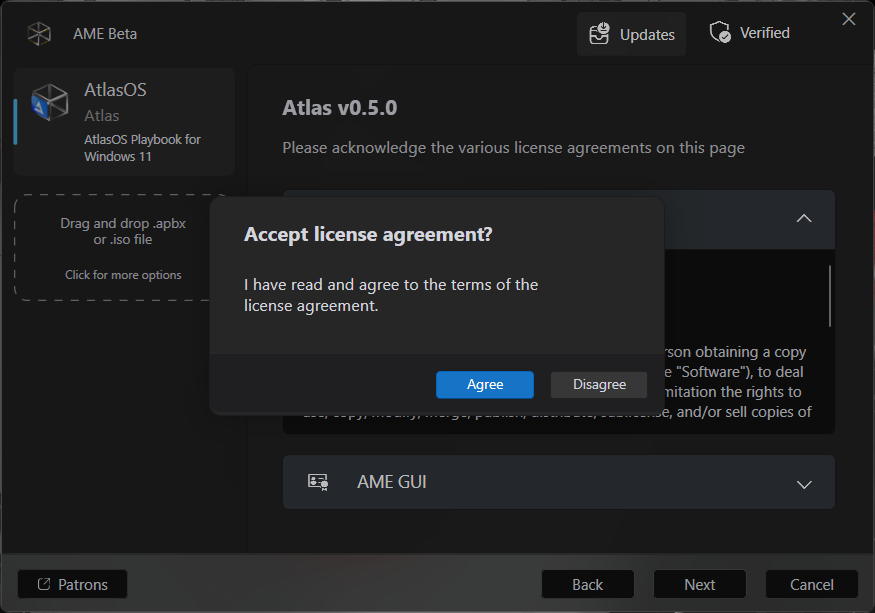
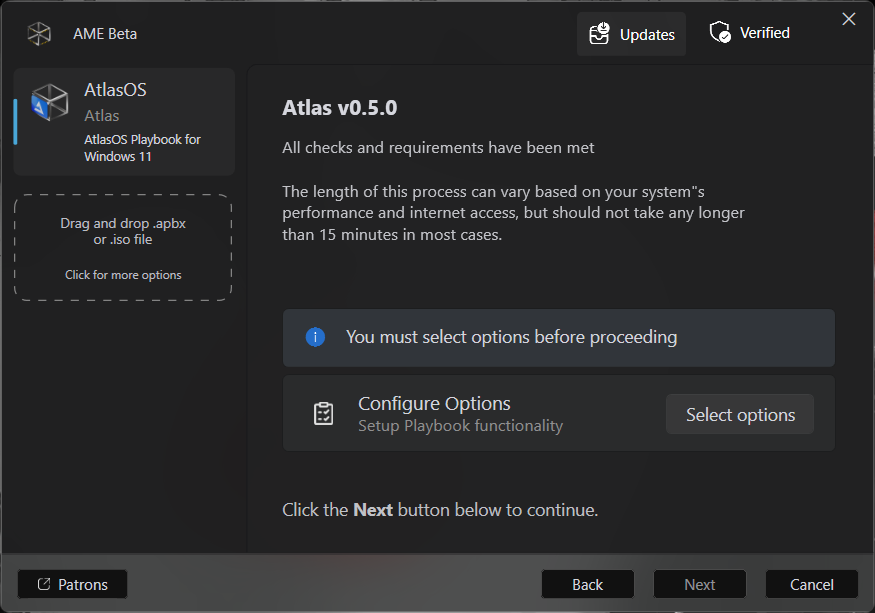
Agree with the terms, and now we have the ability to customize different options.
Configuring Atlas Options
Atlas offers some previous options. I'll show them and select the ones I picked. But first, click on Select options in this window.
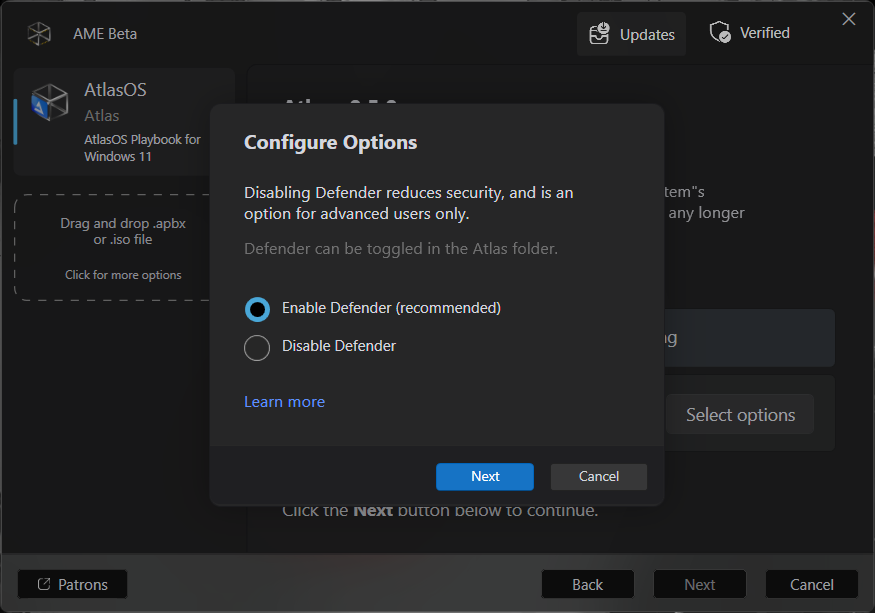
The first one is about Windows Defender. The recommended one is fine, letting Deffender enabled.
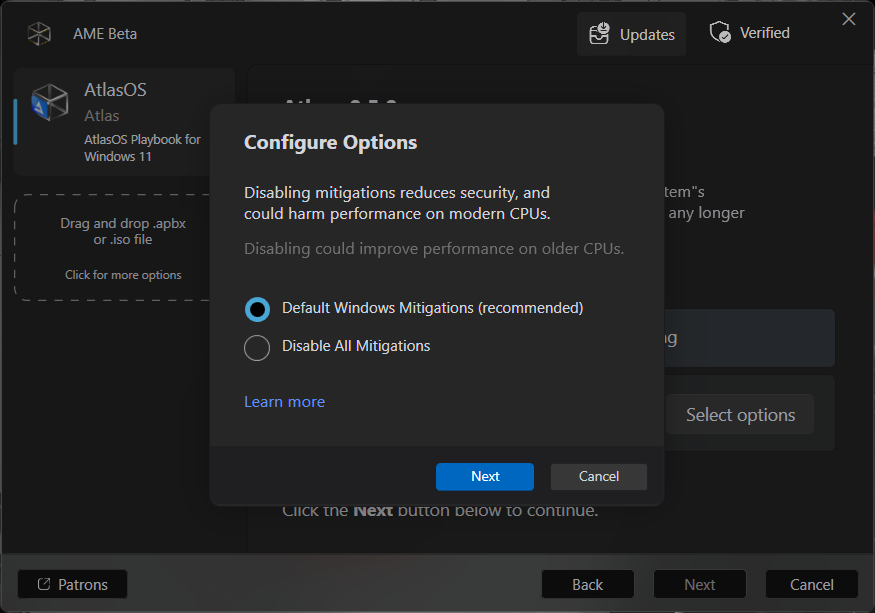
By clicking on Next, we can opt disabling mitigations. Again, the recommended one, letting Default Windows Mitigations, is fine for most cases. If you have an older CPU and have doubts, click on Learn more. Once selected, click Next.
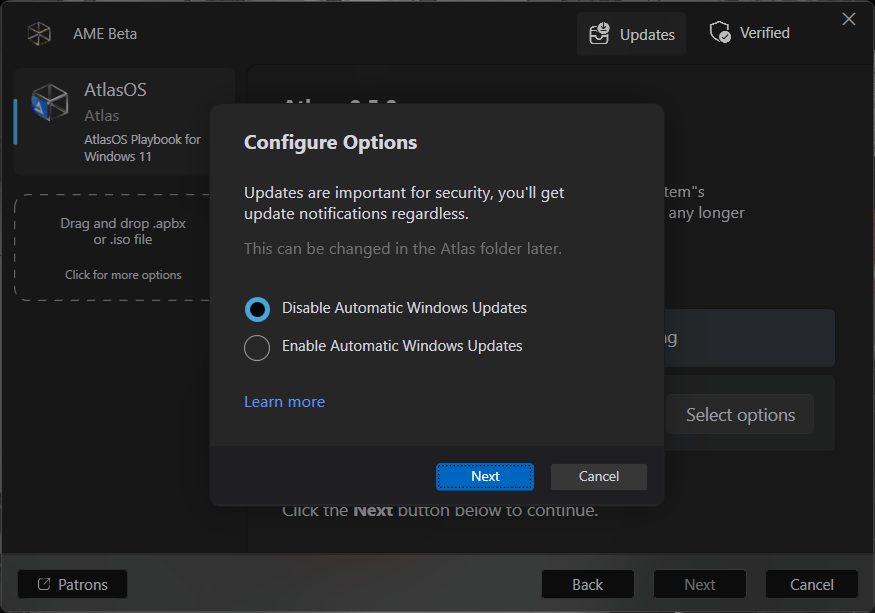
Now one that most of you wanted: Windows Updates. We can choose between enabling (the default Windows 11 behavior) or disabling them. When disabled, we will still get notifications when a new update is released, but we will have to manually install it using Windows Update. This is the recommended option and the one I followed. Click on Next.
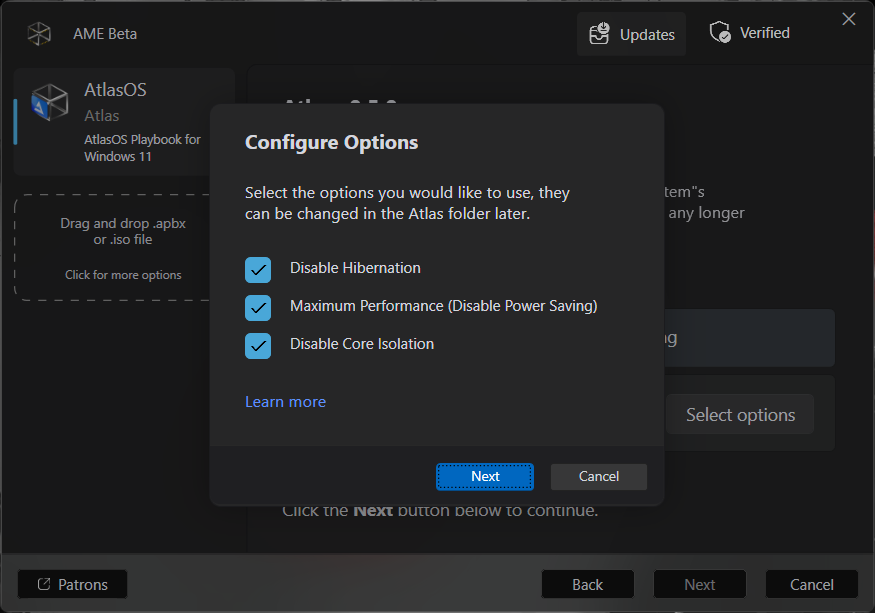
Now a bunch of options about power saving and performance:
- Disable Hibernation: Disabling it makes the system a bit more stable.
- Maximum Perfomance: This disable the power saving mode. On laptops could hit battery life.
- Disable core isolation.
If you have doubts, check what each one specifically does by selecting Learn more. I'll let the default ones, all three selected. Then, click on Next.
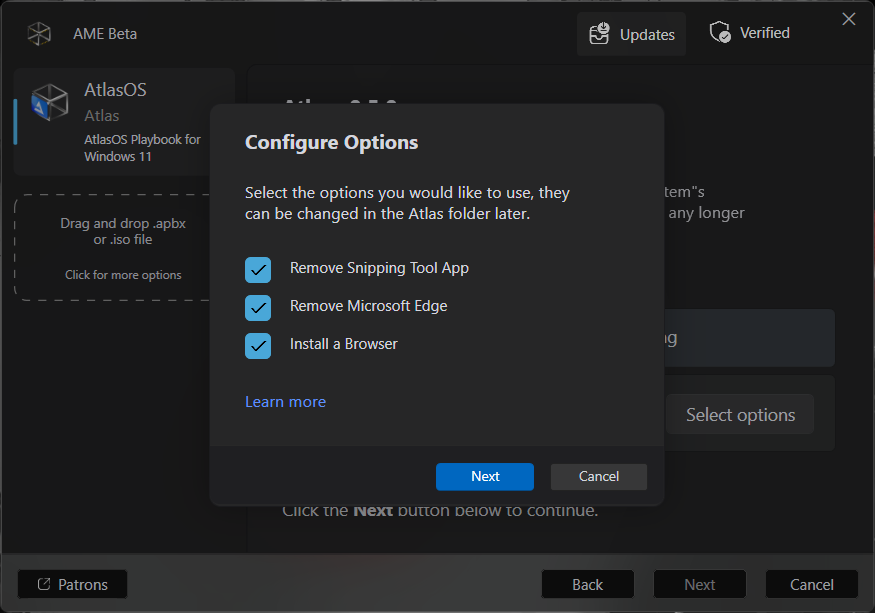
Now we can remove some of the default applications that usually comes with Windows, like Snipping Tool and Edge, even install one of the following browsers instead of Edge:
- Brave.
- LibreWolf.
- Firefox.
- Chrome.
Those options are your choice. Click on Next when ready.
As the last option, I recommend to let it checked as it came. It will install us an executable with all the options and tweaks Atlas is able to make, letting us modify or revert some configurations to change the system as we like, with a pretty useful interface. If not, you must deal with some scripts.
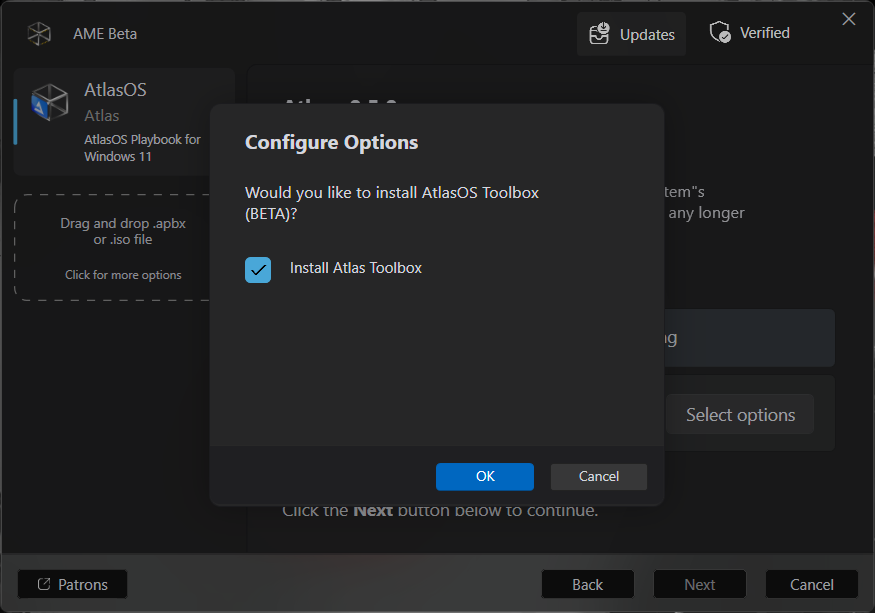
By clicking on OK, Atlas will start configuring our system. It could reboot in some moments, but when done, we will have our Atlas over Windows fully functional.
Atlas Toolbox
It's a pretty handy user interface that let us configure even more the things that Atlas changes on our system. I will not cover all, but show some of them. The tool is as follows.
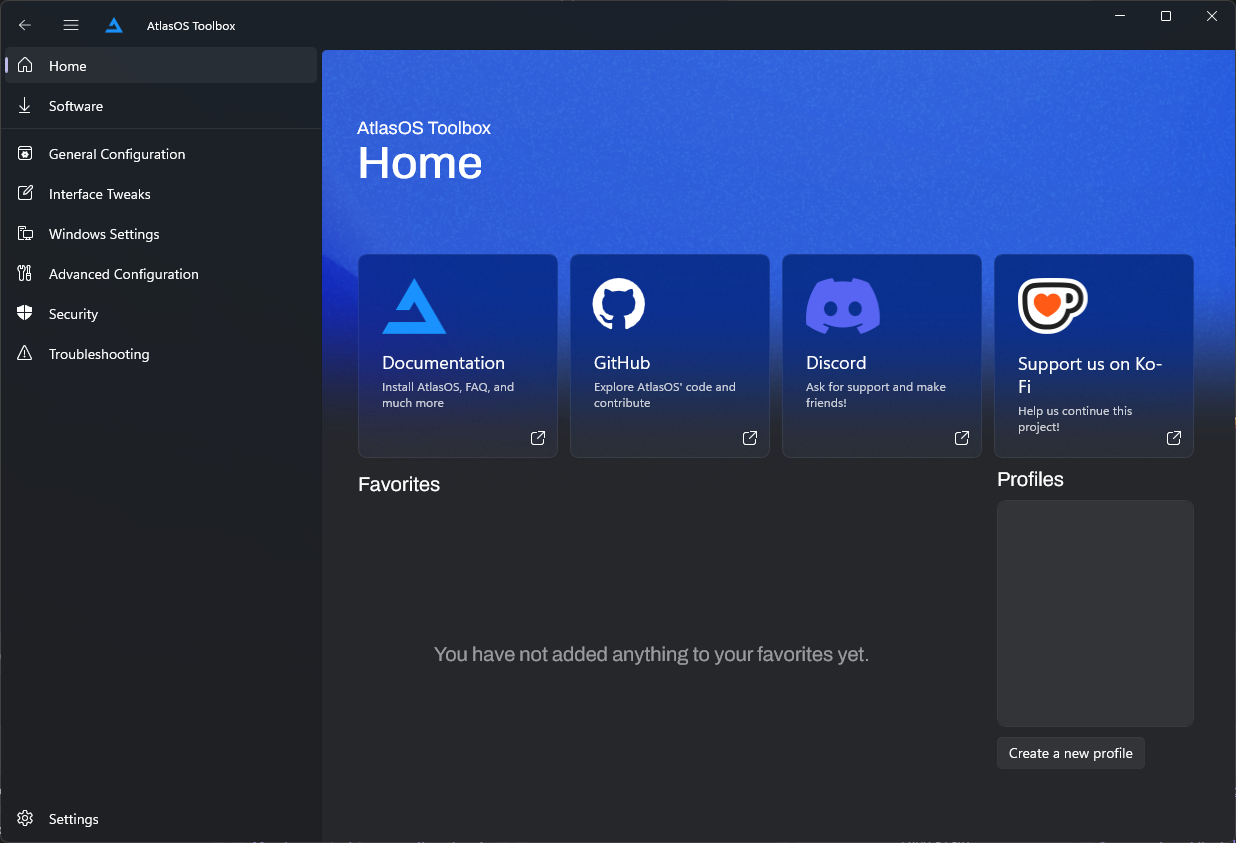
There we have several sub menus at the left one. On the General Configuration we have the AI options, file sharing and a bunch more configurations.
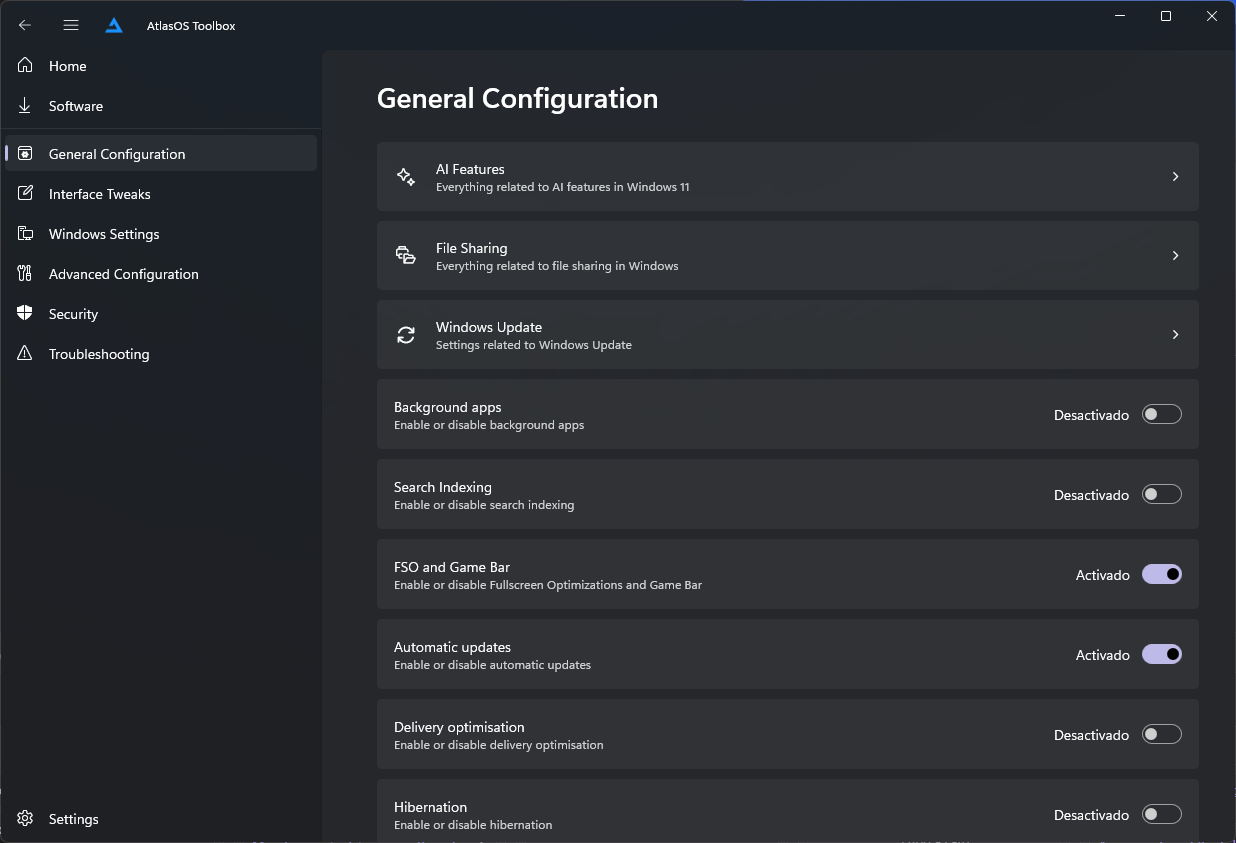
There I just enabled, for my use case and commodity, the Windows Hello option at the bottom.
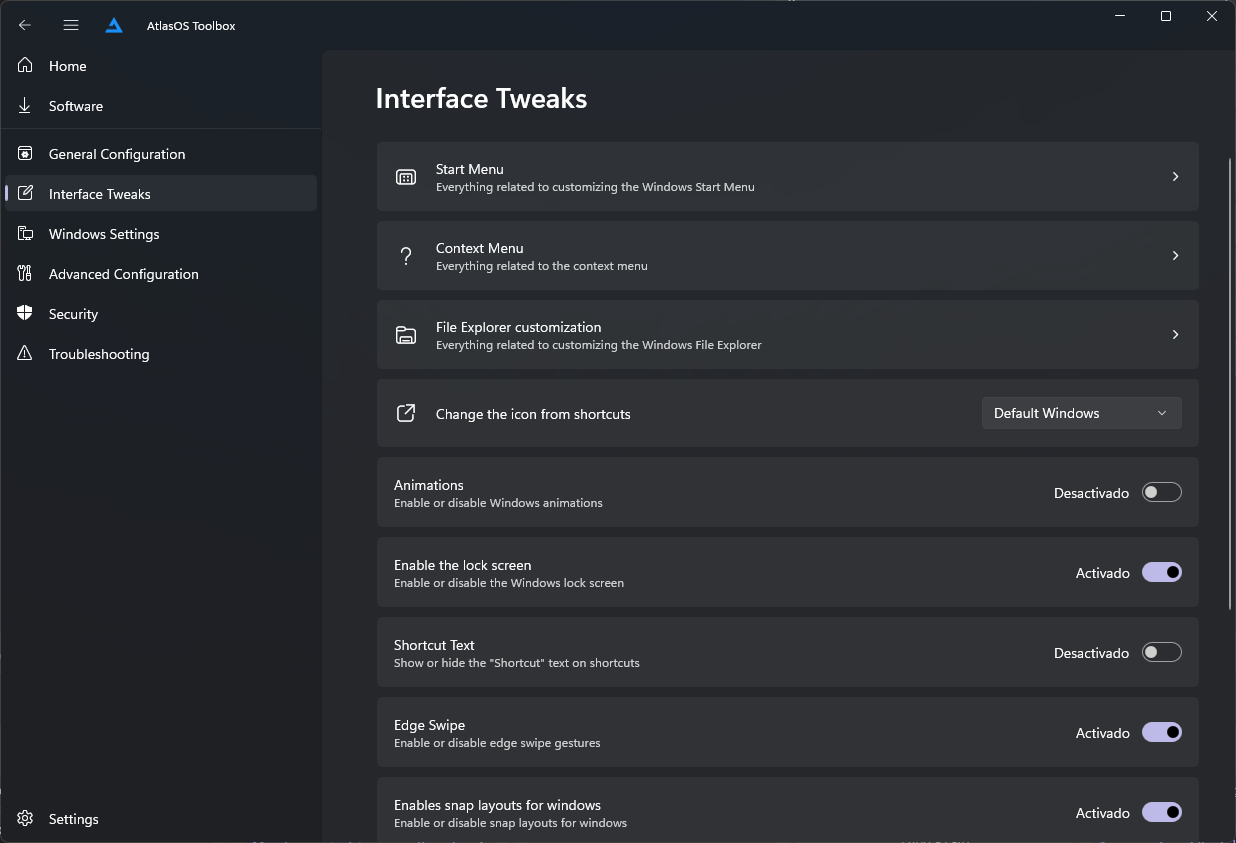
At the Interface Tweaks menu, as it says, we can customize the appearance.
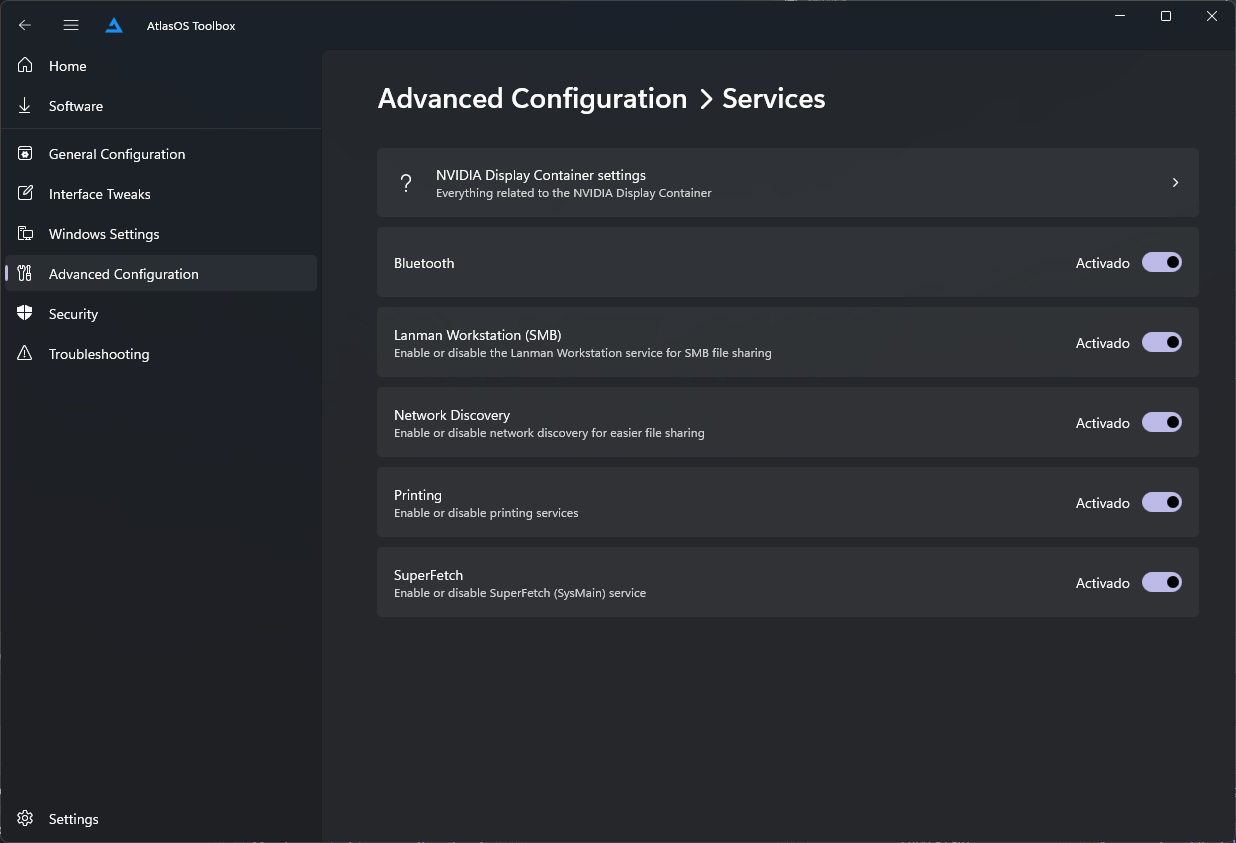
Windows Settings menu is just a collection of links to Windows configuration options. So I'll skip to Advanced Configuration, where, on Services, I'll enable the Printing service, since I have a printer, and the Network Discovery, as it shows this image.
You can also check the Security and the Troubleshooting menus!
Conclusion
Following this post, we've been able to reinstall Windows 11 and debloat it, making some optimizarions and removing telemetry and unwanted software.