
Rufus is a handy tool to create bootable drives to make OS installations. This post will cover the needed steps to create one for Windows 11, with local user to avoid using a Microsoft account.
Prerequisites
- An USB drive.
- Optional: A PC to test the drive.
Getting Rufus
Easy step, go to their official website, and download the tool. There are several options for the different systems, even a portable one. Pick the one that suits you.
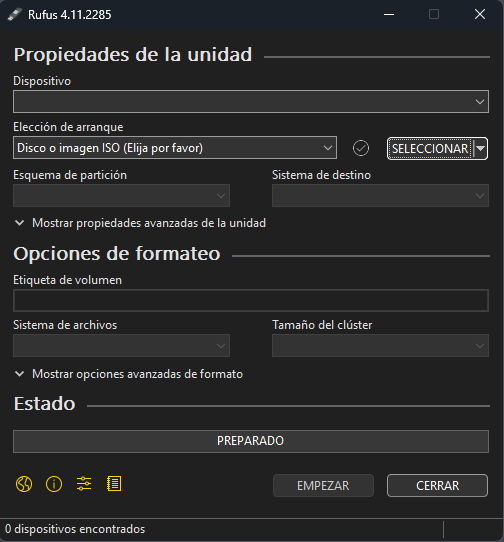
Once downloaded, Rufus is just an executable, open it and the following window should pop up.
Configuring Rufus for Windows ISO
As we can see at Rufus interface, we must select a drive first. If you haven't puged it, do it now, it should refresh the list automatically.
We have to ways of selecting the ISO:
- Selecting one that we have previously downloaded.
- Letting Rufus download it for us (only Windows ISO).
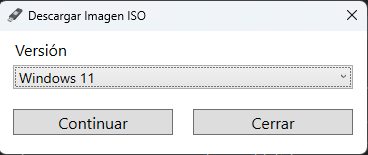
In this case I let Rufus download it for me, selecting DOWNLOAD and picking Windows 11 on the dropdown.
Then more options will appear: Version, Edition, Language and Architecture. Select the needed ones:
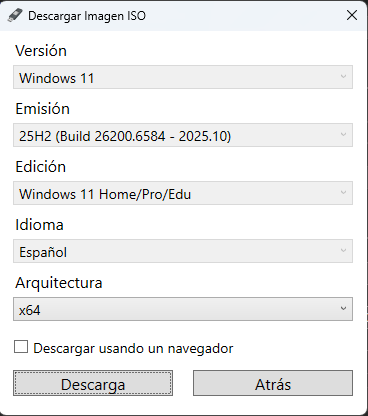
Then download it.
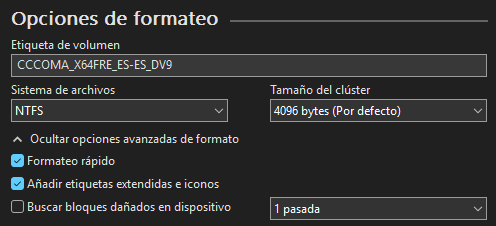
Formatting options
Here there's not much to change, usually the default options are fine. I'll just proceed and click on START.
Windows User Experience options
Now it comes the cool part of Rufus, being able to easy customize the installation. When clicking on START a window with several options should appear.
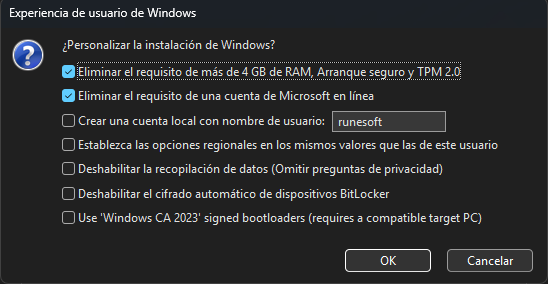
Here we can:
- Disable the need of a Microsoft account.
- State a default local user account.
- Ignore the 4GB RAM requisite or the Seccure Boot requirement.
There's more, check them out and pick the ones you need.
The two ones that are selected by default should cover the majority of use cases.
Now let's click on OK. Rufus should warn us that the drive will be erased, accept if your'e fine with that, and it will start burning the ISO.
And that's it! This was a short post. Now you just have to plug your USB drive into the desired PC and start Windows installation process.
Remember to change boot priority order on your BIOS if you haven't.
Conclusion
Now we count with a Windows USB drive to reinstall whenever we need, using a local account, simplifying the installation process.
Hope you found it useful!